Unit 8 Assignment: Project 4 Part B: Grey Box Approach Hands-on Exercises
Overview
The objective of this task for the City of Gotham is to perform penetration testing on Gotham city server. Leveraging a grey box approach, you will be able to effectively identify and exploit vulnerabilities within the target environment.
A grey box penetration test can be a valuable tool in assessing and improving the security of Gotham City server. This type of penetration test combines elements of both black box testing and white box testing. Grey box testing can provide a more realistic simulation of how an actual attacker might approach the Gotham City server. It allows you to mimic the level of information an attacker might have, which helps in identifying vulnerabilities and weaknesses that an external attacker could exploit. Grey box testing assesses the effectiveness of Gotham City server’s security controls.
By the end of these hands-on exercises, you will have practice experience conducting successful penetration tests and secure systems against potential cyber threats.
Exercise 1: Banner Grabbing
Objective: Perform banner grabbing on a target machine using Nmap from your Kali Linux machine.
Instructions
- Open a terminal on your Kali Linux machine.
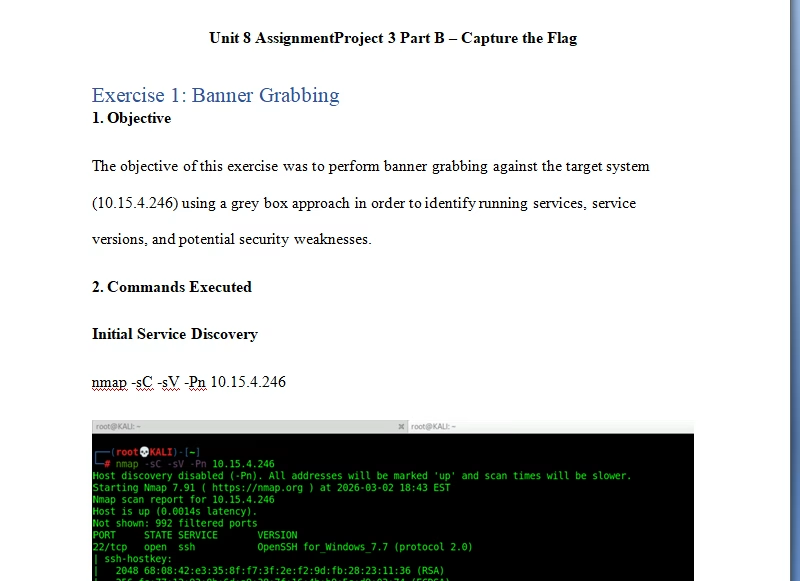
- Execute the following command to perform an Nmap scan on the target IP address (10.11.14.84) and retrieve service version information:
nmap -sC -sV 10.11.14.87 - Once the Nmap scan is complete, analyze the output to identify the services running on the target machine.
- Perform banner grabbing on each identified service to extract additional information, such as service banners or headers.
- Submit the content of the flag found during banner grabbing.
Note: Ensure that you document your process and observations during the exercise.


Connect to the ftp port as follows:
nc 10.11.14.87 21
Exercise 2: Anonymous FTP Login
Objective: Connect to an FTP server anonymously and retrieve a flag file.
Instructions
- Based on the Nmap output from the previous exercise, identify that the FTP service is enabled and supports anonymous login.
- Open a terminal on your Kali Linux machine.
- Connect to the FTP port of the target IP address (10.11.14.84) using the following command:
ftp 10.11.14.84 - When prompted for the username, type “anonymous” and press “Enter”.
- When prompted for the password, press Enter (leave it blank) and press Enter again.
- After successful login, type “dir” to list the contents of the FTP server.
- Identify the flag1.txt file in the directory listing.
- Use the “get” command to download the flag1.txt file:
get flag1.txt. - Once the file is downloaded, exit from the FTP session:
exit - Finally, display the content of the flag1.txt file using the following command:
cat flag1.txt.
Note: Ensure that you document your process and observations during the exercise.

(root💀KALI)-[~]
# cat Flag1.txt
Flag1{FTP_IS_INSECURE}
Exercise 3: Source Code Review
Objective: Review the source code of a web page to find a hidden flag.
Instructions
- Based on the Nmap output from the previous exercises, identify that the HTTP port is open on the target IP address (10.11.14.87).
- Open a web browser or use a tool like curl to navigate to the target web server by entering the following URL in the address bar: http://10.11.14.87
- Once the webpage loads, press Ctrl+U to view the page source code.
- Analyze the source code to find flag3.
- The flag may be hidden within HTML comments, JavaScript code, or other elements of the webpage source.
- Once you’ve found the flag, make a note of it for submission.
Note: Ensure that you document your process and observations during the exercise.


Exercise 4: Decoding
Objective: Decode an encoded file using an online Base64 decoder.
Instructions
- Connect to WINSERVERTGT.
- Locate the file named “Flag4.txt” on the desktop.
- Open the “Flag4.txt” file and copy its content.
- Open a web browser and navigate to https://www.base64decode.org/.
- Paste the copied content into the provided text area on the website.
- Click the “Decode” button to decode the content.
- Once the decoding process is complete, the original text will be displayed.
- Review the decoded content to find flag4.
- Make a note of the flag for submission.
Note: Ensure that you document your process and observations during the exercise.

- Paste the encoded text and click “Decode” and submit the Flag4.

Tutorial for Grey Box Approach Hands-on Exercises