Unit 2 Assignment: Project 1 Part B: Conducting a Security Assessment
Overview
The objective of this task for the City of Gotham is to conduct a security assessment. Regular security assessments are essential for every organization to conduct across their networks, computers, and applications. These assessments serve the primary goal of identifying and verifying the presence of vulnerabilities. Subsequently, organizations can act to patch, mitigate, or eliminate these vulnerabilities.
A vulnerability assessment is designed to pinpoint and classify risks associated with security weaknesses in assets within an environment. A vulnerability assessment offers remediation steps to address and resolve identified issues.
The primary objective of a vulnerability assessment is to comprehensively understand, identify, and categorize the risks posed by evident issues within an environment, all without resorting to exploiting them for additional access.
There are numerous tools available for conducting security assessments, and among them, you will download and install Nessus and OpenVAS in the assignment for this unit.
Instructions
Perform the following exercises in MARS, the virtual learning environment. Follow the steps in each exercise, taking screenshots as you go along and inputting the information and documentation in a Word document using the template provided in the submission instructions.
Exercise 1
Objective: Execute a thorough security assessment on a specially configured virtual network environment with embedded vulnerabilities.
Instructions
Getting Started with Nessus
In this first step, you will see how to install Nessus. Please note that Nessus has already been installed for you in MARS; however, if you want to attempt to install Nessus, you may follow the steps below.
Downloading Nessus
- To download Nessus, head to its Download Page, and select the appropriate binary for your system. For this walkthrough, you’ll download the Debian package tailored for Ubuntu: Tenable Nessus Download Page

- Now open a terminal, and type “dpkg -i Nessus-10.7.1-ubuntu1404_amd64.deb”.

- After installing Nessus, begin by starting the Nessus service.
sudo systemctl start nessusd.service
- To access Nessus, navigate to https://localhost:8834.

- Click on “Advanced…”, and click on “Accept the Risk and Continue”.

- In Nessus, click on “Continue”.

- Select the “Register for Nessus Essentials”, and then click “Continue”.

- Fill in the required information, and click “Register”.

- On the page with the activation code, click “Continue”.

- Create a new user account.

- Now this step will take a few minutes to complete. You will see a page showing that Nessus is initializing with a progress bar indicating that the plugins are downloading.

Exercise 2
Objective: Analyze a complex virtual environment consisting of interconnected virtual machines for security testing.
Instructions
Once the setup is finished, dive into creating scans, scan policies, plugin rules, and customizing settings. The Settings page offers a variety of options, including configuring a Proxy Server or SMTP server, managing standard accounts, and adjusting advanced settings for the user interface, scanning, logging, performance, and security.

- In the “New Scan” section, you can choose from a basic Host Discovery scan for identifying live hosts and open ports or select from various scan types including Basic Network Scan, Advanced Scan, Malware Scan, Web Application Tests, and scans focused on specific CVEs and audit & compliance standards. You can find a description of each scan type to help you decide.

- For this exercise, select the “Advanced Scan” option. Click on “Basic > General”.
- File the required fields. In this exercise, you will scan three machines.
- 10.11.14.84 Kali Linux
- 10.11.14.85 Ubuntu
- 10.11.14.86 Windows

- Click on “Assessment > Malware”, and turn on the option for “Malware” scan.

- Once you turn on the option for “Malware”, the button will turn blue.

- You are all set! Scroll down, and click “Save”.

- You will be redirected to “My Scans” page. Here is the scan that you previously created. Click on “Launch”.

- The scan is started. Click on the scan name.

- It will show the current scan running.

- The scan might take from minutes to hours depending on the system configuration and number of IP addresses provided.
Submission
- Submit the following reports in the form of a screenshot:
- Nessus Scan Report
- OpenVAS Scan Report
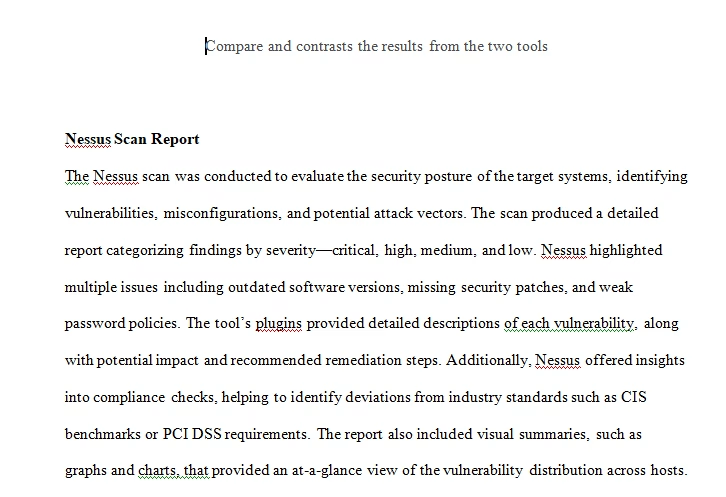
- Compare and contrasts the results from the two tools
- Submit your Exercise 4 in the Unit 2 Assignment template
Before submitting your completed assignment template, check out the following resources to help you revise your own writing:
If you do not know whether you need to cite in this assignment, review Manage Information Ethically. Finally, if you require quantitative-related support, review the following webpages:
Exercise 3
Objective: Document vulnerabilities and security gaps within the target virtual network.
Instructions
Nessus Reports
After a scan is completed, you have the option to export a report in PDF, HTML, or CSV formats. The PDF and HTML reports offer an Executive Summary or a custom report. The Executive Summary includes a list of hosts, the total number of vulnerabilities per host, and a “Show Details” option displaying severity, CVSS score, plugin number, and issue name for each vulnerability. The plugin number links to the full plugin writeup from the Tenable plugin database. The PDF report is suitable for easier sharing, while the CSV report allows customization of exported columns. This is useful for importing scan results into other tools like Splunk or for sharing with internal stakeholders responsible for remediation or data analysis.

- Select the format of the report (pdf recommended), and click “Generate Report”.

- Once the report is generated, go to the downloads folder and open it. It will look like this:


Getting Started with OpenVAS
Now, you will see how to install OpenVAS. Please note that OpenVAS has already been installed for you in MARS; however, if you want to attempt to install OpenVAS, you may follow the steps below.
OpenVAS, developed by Greenbone Networks, is a widely accessible vulnerability scanner. It forms a component of Greenbone’s Vulnerability Manager, which is freely available to the public. OpenVAS offers comprehensive network scanning functionalities, encompassing both authenticated and unauthenticated testing methods.
Installing Package
sudo apt-get update && apt-get -y full-upgrade
sudo apt-get install gvm && openvas
- To initiate the installation process, execute the following command “gvm-setup”.
gvm-setup- Executing this command will start the setup process, which may take up to 30 minutes to complete.
Starting OpenVas
- Lastly, start OpenVAS by executing the appropriate command. Open a terminal and type “gvm-start”.
gvm-start
- Open a web browser, and navigate to https://127.0.0.1:9392.
- Click on “Advanced”, and then click on “Accept the Risk and Continue”.

- You will see the “Greenbone Security Assistant” dashboards.

OpenVAS Scan
The OpenVAS Greenbone Security Assistant application offers several tabs for interaction. In this section, focus on the “Scans” tab. When you navigate to this tab, you’ll find a list of past scans and the option to create a new task for running a scan. Tasks operate based on the scanning configurations set up by the user.
- For this exercise, only scan ubuntu machine, but take your time to scan other machines as well. Click on “Scan Configs”.

- Click on the “Scans” tab, and select “Tasks”.

- The scan will start and take a couple of minutes, depending on the number of hosts and system configurations.
Exporting The Results
- OpenVAS presents the scan results in a report accessible from the Scans page, as depicted below.


- A very nice and clean report was generated. Please take your time. and go through the report.


Documentation Requirements:
- Take Proper Screenshots:
- Ensure that screenshots are clear, focused, and relevant to the task being documented.
- Use the appropriate screen capture tool to capture screenshots.
- Include annotations or captions as needed to provide context or highlight important information in the screenshots.
- Make Clear Reports:
- Create a comprehensive report that documents all relevant activities, findings, and observations.
- Organize the report with clear headings, sections, and sub-sections for easy navigation and readability.
- Use concise and descriptive language to describe each step, action, or observation.
- Include screenshots, logs, and other supporting evidence to substantiate findings and observations.
- Review the report thoroughly to ensure accuracy, coherence, and completeness before finalizing it.
- Take Your Time and Go Through the Report:
- Take sufficient time to review and validate the content of the report.
- Double-check all commands executed, logs generated, and activities documented to ensure accuracy.
- Verify that all screenshots are clear, relevant, and properly annotated to provide context.
- Review the report from the perspective of a reader to ensure clarity and comprehensiveness.
- Address any inconsistencies, errors, or omissions identified during the review process before finalizing the report.
Submission
- Submit the following reports in the form of a screenshot:
- Nessus Scan Report
- OpenVAS Scan Report
- Compare and contrasts the results from the two tools
- Submit your Exercise 4 in the Unit 2 Assignment template
Before submitting your completed assignment template, check out the following resources to help you revise your own writing:
If you do not know whether you need to cite in this assignment, review Manage Information Ethically. Finally, if you require quantitative-related support, review the following webpages:
Tutorial for Project 1 Part B: Conducting a Security Assessment